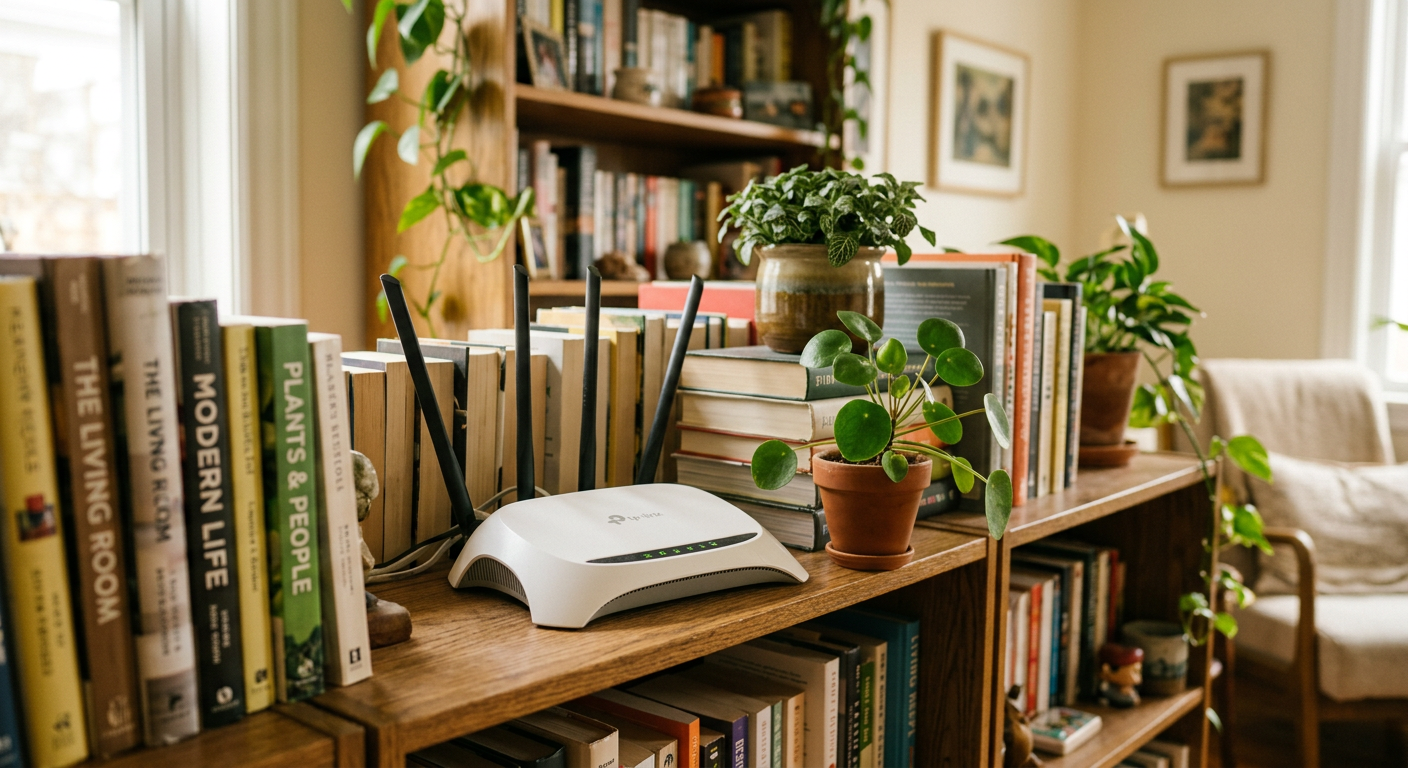
A guest network lets visitors get online without having access to your computers, printers or shared files. It is also a sensible home for smart plugs and other connected devices.
Step by step
Open your router settings
Most routers have a companion app, or you can type the address printed on the router sticker into a browser.
Find the guest option
Look under Wireless, Wi-Fi or Network settings for “Guest network”.
Name it and set a password
Choose a clear name and a strong password using WPA2 or WPA3 security. Avoid leaving it open.
Turn on isolation
If there is an option to stop guests seeing local devices, switch it on. Save and reconnect.
Change it occasionally
Because you share the guest password freely, it is worth changing it every few months or after a large gathering.
This guide is general information, not professional advice. Always follow your manufacturer's instructions and local regulations. See our Disclaimer.